Installation
Requirements
IMPORTANT, PLEASE ENSURE THE FOLLOWING
- Microsoft SQL Server Reporting Services, supported versions 2008 - 2019
- Basic authentication must be enabled within SQL Reporting services, this is done within the rsreportserver.config file on the report server, for more information, see the following instructions
- SOAP Extension must be installed and enabled within PHP, if it is not, see the PHP SOAP installation instructions below, if your are not sure, once you activate the plugin, a message will be displayed if it is not detected
- WordPress 3.7.1, PHP 5
Automated Installation
From within WordPress dashboard:
- Go to "Plugins" -> "Add New"
- Search for "SQL Reporting Services" by Module Masters
- Click "Install"
- Click "Activate"
- Opt-In, this is optional but recommended as it verifies your installation. The following is what the opt in screen looks like.
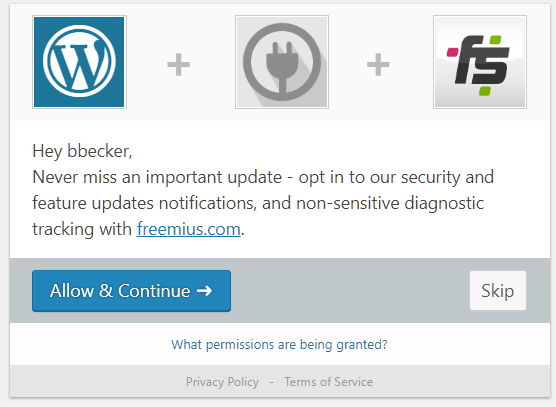
- Go to "Settings" -> "SQL Reporting Services", register your report server (e.g. http://server/reportserver) and enter your active directory credentials to access the server. It is recommended that the user account that is used have the "Content Manager" role within the reporting services manager.
- From a blog entry or page, add the ssrs shortcode (e.g. [ssrs reportpath="/TestReports/ParmTest" height="1200px" width="100%"])
Manual Installation
- Instead of the automatic installation above, you can download and unzip the plugin to your computer
- Upload the "sql-reporting-services" folder that was extracted from the zip file and copy to the /wp-content/plugins directory of your WordPress site.
- Activate the plugin through the "Plugins" page
- Opt-In, this is optional but recommended as it verifies your installation (see screenshot of the opt in screen above)
- Go to "Settings" -> "SQL Reporting Services", register your report server (e.g. http://server/reportserver) and enter your active directory credentials to access the server. It is recommended that the user account that is used have the "Content Manager" role within the reporting services manager.
- From a blog entry or page within your WordPress site, add the ssrs shortcode (e.g. [ssrs reportpath="/TestReports/ParmTest" height="1200px" width="100%"])
PHP SOAP Extension
This plugin makes calls to the SSRS server using the reporting services API which leverages SOAP web service calls. In order for these calls to be able to be made from the PHP engine which powers WordPress, this extension must be installed.
The plugin will throw an error message shown below if it detects that this is missing so if you aren't sure, simply do the installation and you'll see a notification if you need to enable this. If so, don't fret, it is easy!

For Windows
1. Find extension=php_soap.dll in php.ini and remove the semicolon(;)
2. Restart your Server
For Linux (Ubuntu)
For PHP7.x
sudo apt-get install php7.0-soap
sudo systemctl restart apache2
For nginx
sudo apt-get install php7.0-soap
sudo systemctl restart nginx
For PHP5
apt-get install php-soap